How to Print Passport Size Photos
To print a passport-size photo correctly, first create the image at the required dimensions, then print it at 100% / Actual Size without using settings such as Fit to Page, Scale to Fit or automatic enlargement.
The most important step is to make sure the printer does not silently resize the image.
If you still need to create the digital photo, use the Passport Size Photo Maker first.
Start with the Correct Photo Size
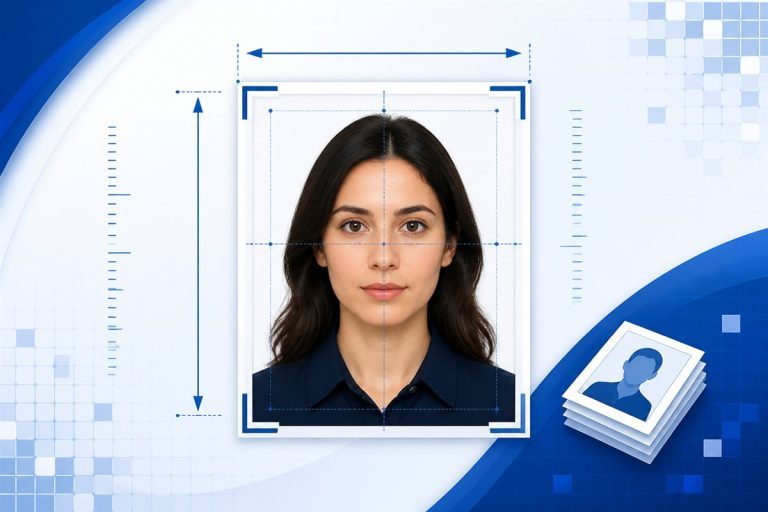
Before printing, confirm the physical dimensions required by your application.
Common passport-style formats include:
- 35 × 45 mm
- 35 × 50 mm
- 45 × 55 mm
- 2 × 2 inches
- another custom size specified by the authority or form
There is no single universal passport-photo size.
If you are unsure how mm, cm, inches and pixels relate, see the Passport Size Photo Size Guide.
Create the Digital Photo Before Printing
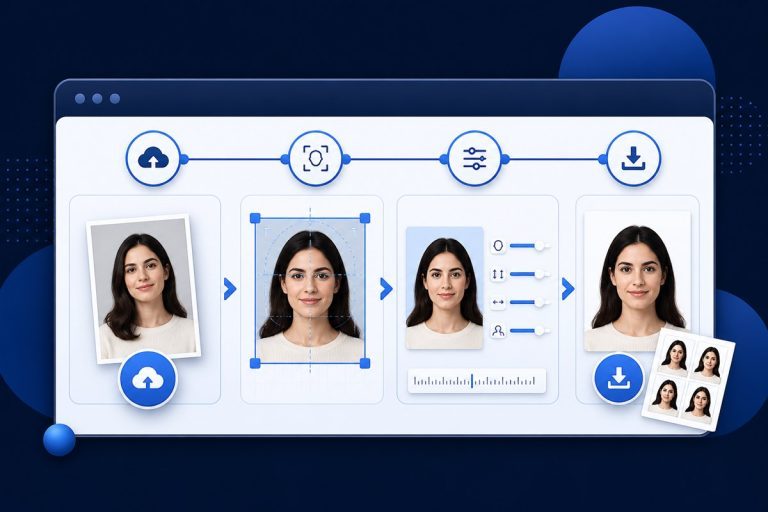
The current Passport Size Photo Maker lets you:
- upload a normal photo
- choose physical dimensions
- crop and position the image
- convert mm, cm or inches into pixels using DPI
- export JPG or PNG
- optionally reduce JPG file size
For example, a 35 × 45 mm photo at 300 DPI is approximately:
413 × 531 pixels
Once the crop is correct, download the individual image to your device.
The current V1 tool creates an individual photo file. It does not yet automatically generate a 4×6 or A4 sheet containing multiple copies.
What Does “Print at 100%” Mean?
When a print dialog says:
- 100%
- Actual Size
- No Scaling
it means the software should print the image at its intended physical dimensions rather than automatically enlarging or shrinking it to fill the paper.
This is important for passport-style photographs because even a small scaling change can alter:
- width
- height
- head size
- margins
If your photo is meant to be 35 × 45 mm, the printed result should still measure approximately 35 × 45 mm.
Avoid “Fit to Page”
Settings such as:
- Fit to Page
- Fit
- Shrink to Fit
- Scale to Fit
- Fill Page
- Borderless Fill
can resize the photograph.
These options are useful for ordinary documents and photographs, but they can be a problem when the physical dimensions themselves matter.
Choose Actual Size or 100% whenever your software provides that option and the print layout has already been prepared at the correct physical scale.
How to Print a 35 × 45 MM Passport Photo
If your required size is 35 × 45 mm:
- create the image at 35 × 45 mm
- download the finished photo
- place it on a document or print sheet at exactly 35 × 45 mm
- open the printer settings
- choose Actual Size / 100%
- disable automatic fit or enlargement
- print one test copy
- measure it with a ruler
After printing, confirm:
Width: approximately 35 mm Height: approximately 45 mm
Do not rely only on what the print dialogue says. Measuring the first printed copy is a useful final check.
How to Print a 2 × 2 Inch Passport Photo
For an exact 2 × 2 inch photograph:
- prepare the image at 2 inches wide
- prepare it at 2 inches high
- place it on the print layout at exactly 2 × 2 inches
- print at 100% / Actual Size
- measure the finished image
Exactly 2 inches equals:
50.8 mm
At 300 DPI, 2 × 2 inches equals:
600 × 600 pixels
The common 51 × 51 mm square format is very close, but 51 mm is slightly larger than exactly 2 inches.
If your application specifically says 2 × 2 inches, use 2 inches rather than assuming the two measurements are identical.
Can You Print Passport Photos on 4×6 Photo Paper?
Yes. A 4 × 6 inch photo sheet is commonly used for arranging several small photographs on one piece of photo paper.
A 4 × 6 inch sheet measures approximately:
101.6 × 152.4 mm
How many passport-size photos fit depends on:
- the individual photo dimensions
- orientation
- margins
- spacing between copies
- printer’s non-printable area
For example, several 35 × 45 mm portraits can physically fit on a 4×6 sheet, but the exact number depends on how the layout is arranged.
Leave enough space between images so they can be cut cleanly.
How Many 35 × 45 MM Photos Fit on 4×6 Paper?
A 4×6 inch sheet is approximately:
101.6 × 152.4 mm
A 35 × 45 mm photo is:
35 mm wide × 45 mm high
Without allowing for margins or cutting space, the physical sheet could theoretically accommodate multiple copies in different arrangements.
In real printing, however, you need to account for:
- printer margins
- spacing between photos
- cutting tolerance
- orientation
For that reason, do not calculate the layout using only raw paper dimensions.
A future version of PassportSizePhoto.org may include a dedicated print-sheet generator to calculate these layouts automatically.
Can You Print Passport Photos on A4 Paper?
Yes, if your printer and application allow ordinary paper or suitable photo paper.
A4 measures:
210 × 297 mm
This gives enough space for many small photographs.
However, the same rules still apply:
- each photo must remain at its exact physical size
- do not use Fit to Page
- allow margins
- leave cutting space
- verify the first printed copy with a ruler
If photo quality matters, suitable photo paper and appropriate printer settings will generally produce a better result than standard office paper.
Photo Paper vs Normal Printer Paper
Whether you should use photo paper depends on the application.
Photo Paper
Photo paper can provide:
- sharper detail
- better contrast
- smoother colour
- a more traditional photographic finish
Normal Paper
Ordinary printer paper may be unsuitable when a physical photo is expected.
Some applications accept only digital uploads, in which case no physical print is needed at all.
Always check whether the authority wants:
- a digital file
- a printed photograph
- a particular paper or finish
- a photograph captured at the application centre
Do not print a photo simply because the phrase “passport size” appears on the form if the process is actually digital.
Glossy or Matte Passport Photo?
There is no universal rule that every passport-style photo must be glossy or matte.
Different authorities can have different requirements.
If the instructions specify:
- glossy
- matte
- photo-quality paper
- another finish
follow that requirement.
If no finish is specified, avoid assuming that a generic recommendation from another country or application automatically applies.
Printer Margins Matter
Many printers cannot print all the way to the edge of a sheet.
This non-printable area can affect layouts placed close to the paper edge.
When arranging multiple photos:
- keep the photographs inside the printable area
- leave margin around the sheet
- leave space between copies
- avoid placing crop lines directly at the printer edge
A print layout that fits mathematically on the paper may still be clipped by the printer.
Borderless Printing Can Also Change the Scale
Borderless photo printing often enlarges an image slightly so that it extends beyond the paper edge and avoids white borders.
This behaviour is useful for ordinary full-page photographs.
It can be unsuitable for passport-size printing if the enlargement changes the physical dimensions of each individual photo.
If exact size matters, check whether the borderless setting applies automatic expansion.
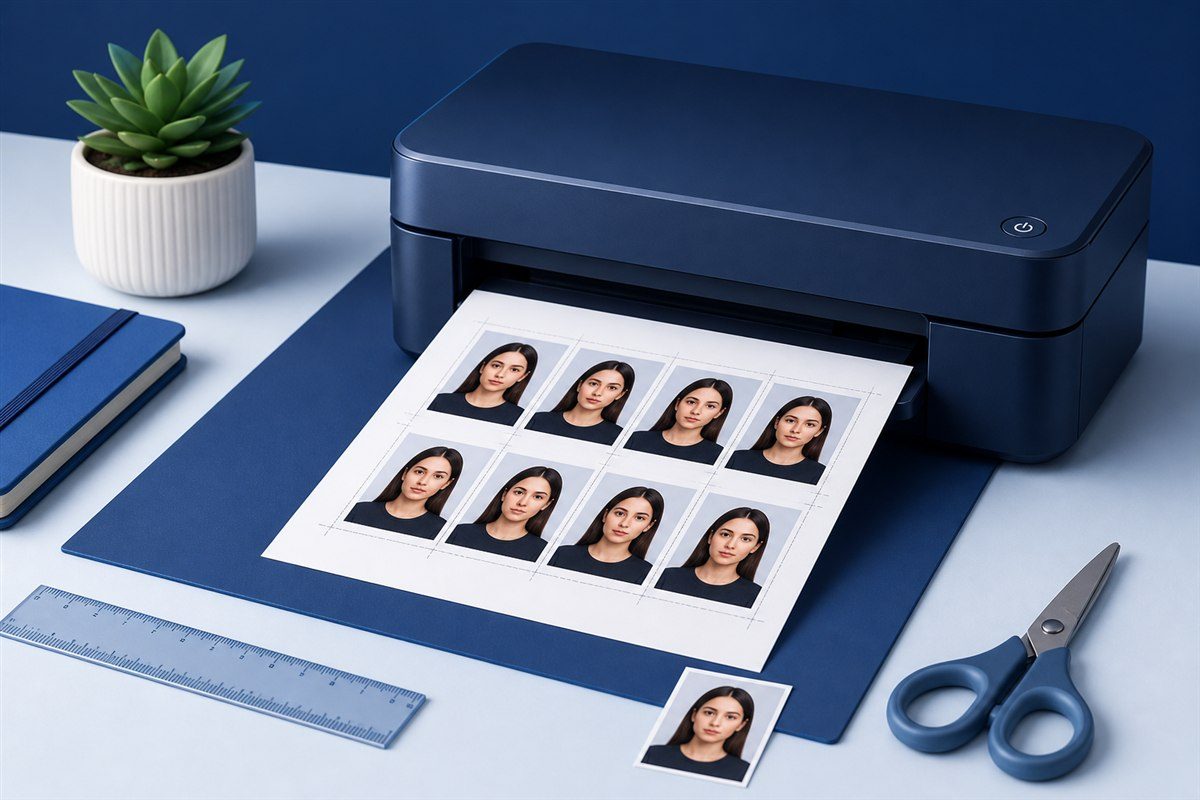
How to Print Multiple Passport Photos on One Page
The basic method is:
- create one correctly sized photo
- open a document, image editor or print-layout program
- place several copies on the page
- keep every copy at the exact required physical size
- add small gaps for cutting
- choose the correct paper size
- print at 100%
- measure a test copy
Avoid resizing copies manually after duplication.
Every copy should have the same dimensions.
How Much Space Should You Leave Between Photos?
There is no universal cutting-gap requirement.
A small space between copies can make cutting easier.
The exact amount depends on:
- scissors or cutter
- page layout
- printer accuracy
- whether borders are allowed
- how many copies you want on one sheet
The gap itself should be outside the required photo dimensions.
Do not include cutting space inside the 35 × 45 mm or other specified photo area.
Should You Add a Border Around Passport Photos?
Only if your application permits it.
A visible border can change the appearance of the photograph and may affect how the dimensions are interpreted.
Unless the instructions ask for a border, prepare the image to the required dimensions without adding decorative frames.
Any cutting guide should remain outside the actual image area.
How to Check the Printed Size
After printing the first copy:
- use a millimetre ruler
- measure the width
- measure the height
- check that the image was not stretched
- compare the photograph with the application requirements
For a 35 × 45 mm image, check for approximately:
35 mm width
and:
45 mm height
If the measurement is significantly different, check the printer scaling settings before printing more copies.
Why Does My Passport Photo Print Too Large?
Common causes include:
- Fit to Page
- automatic enlargement
- borderless expansion
- wrong document size
- image placed at an incorrect physical size
- printer-driver scaling
- software ignoring image dimensions
Check the print preview and scaling options.
If the entire page has been enlarged or reduced, choose Actual Size / 100% where available.
Why Does My Passport Photo Print Too Small?
Possible causes include:
- Shrink to Fit
- reduced print scale
- incorrect page-layout dimensions
- an image inserted at a smaller physical size
- converting pixels to physical size incorrectly
Remember that pixels alone do not define a printed physical size unless the print workflow also knows the intended resolution or physical dimensions.
Pixels vs Printed Dimensions
A digital image might be:
413 × 531 pixels
but the number of pixels by itself does not automatically guarantee that every printer will output it at 35 × 45 mm.
The print workflow needs an intended physical size.
That is why, for physical printing, you should make sure the layout is explicitly set to the required measurement and then print without scaling.
For the relationship between dimensions and DPI, see the Passport Size Photo Size Guide.
Do You Need 300 DPI for Printing?
300 DPI is a common working resolution for good-quality photo printing, but it is not a universal passport requirement.
For example:
35 × 45 mm at 300 DPI ≈ 413 × 531 pixels
A higher DPI creates more pixels at the same physical size.
Use the resolution required by the authority or printing workflow when one is specified.
If no DPI is specified, focus on:
- correct physical dimensions
- sufficient image quality
- correct output format
- any published pixel requirements
Can You Print a Passport Photo from Your Phone?
Yes, if your phone can send the prepared image to:
- a compatible home printer
- a printing app
- a local photo-printing service
- a photo shop
The main risk is automatic scaling.
Before confirming the print, check whether the app offers:
- Actual Size
- 100%
- custom physical dimensions
If the phone printing app only offers automatic filling or cropping, a desktop print layout or photo shop may give you better control over exact size.
Printing at a Photo Shop
If you take the digital image to a photo shop:
- tell them the required physical dimensions
- tell them not to resize the individual photograph
- ask for a test or verify the first copy
- check the final size with a ruler
Do not assume that the phrase “passport photo” means the same dimensions in every country.
Give the shop the actual measurements from your application.
Print One Test Before Printing Many Copies
This is one of the simplest ways to avoid waste.
Print a single sheet or test copy first.
Check:
- size
- crop
- face position
- colour
- sharpness
- margins
Only print additional copies after the test is correct.
Does PassportSizePhoto.org Create a Print Sheet?
Not in the current V1 tool.
The current Passport Size Photo Maker creates and downloads an individual photo file.
A future version may add:
- 4×6 print-sheet generation
- A4 print sheets
- multiple-copy layouts
- spacing controls
- automatic copy arrangement
Until such a feature is actually available, we do not present it as part of the current tool.
Common Printing Mistakes
Using Fit to Page
This can change the dimensions.
Assuming the Preview Is Actual Physical Size
A screen preview is not a ruler.
Measure the printed copy.
Using the Wrong Paper Size
Make sure the print layout and printer agree on the paper size.
Forgetting Printer Margins
Photos near the edge may be clipped.
Using Borderless Expansion
Some borderless modes enlarge content.
Printing Before Checking the Required Dimensions
Always verify the specification first.
Confusing Pixels with Millimetres
Pixels are digital dimensions. Millimetres describe physical size.
Printing Too Many Copies Before Testing
Print and measure one sheet first.
Common Questions About Printing Passport Size Photos
How Do I Print a Passport Size Photo?
Create the image at the required dimensions, place it on a print layout at the exact physical size and print using 100% / Actual Size rather than Fit to Page.
Can I Print Passport Size Photos at Home?
Yes, if your printer can produce suitable quality and you can control the physical print size accurately.
What Paper Size Should I Use?
You can use a suitable photo-paper or page size such as 4×6 or A4, provided the individual photograph remains at the exact required dimensions.
Can I Print Several Passport Photos on One 4×6 Sheet?
Yes, multiple small photographs can fit on a 4×6 sheet.
The exact number depends on the photo dimensions, orientation, printer margins and spacing.
Can I Print Passport Photos on A4?
Yes, provided you place each copy at the correct physical size and print without scaling.
Should I Choose Fit to Page?
Usually no when exact physical dimensions matter.
Use Actual Size or 100% where available.
Why Is My Printed Photo the Wrong Size?
Automatic printer scaling, borderless enlargement or incorrect page-layout dimensions are common causes.
Is 413 × 531 Pixels Automatically 35 × 45 MM When Printed?
No.
413 × 531 px corresponds approximately to 35 × 45 mm at 300 DPI, but the print layout still needs to preserve that physical size.
Should Passport Photos Be Glossy?
Some applications specify a particular finish and others do not.
Follow the requirement of the application you are preparing.
Does the Current Tool Make a 4×6 Print Sheet?
No. The current V1 tool downloads an individual passport-size image.
Prepare Your Photo Before Printing
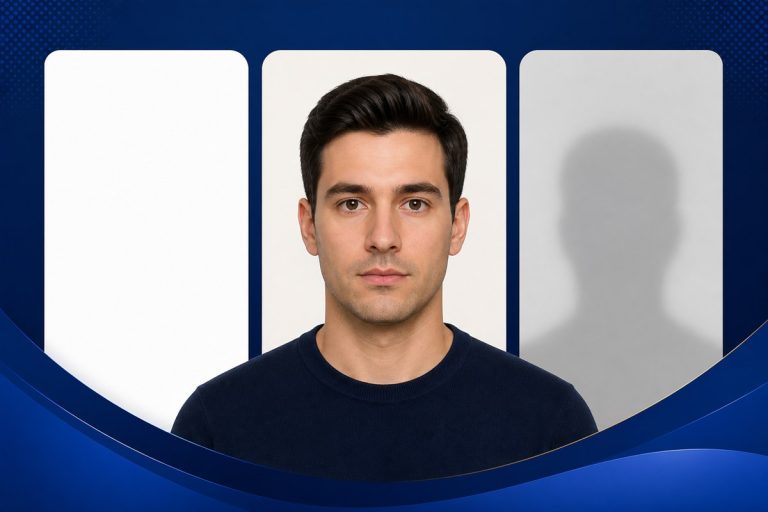
If you have not created the digital image yet, use the Passport Size Photo Maker.
For related guidance:
- Passport Size Photo Size — dimensions, pixels, DPI and aspect ratios
- How to Make a Passport Size Photo — complete creation workflow
- Passport Photo Background — background preparation and common mistakes

AUTHOR & WEBSITE OWNER
Written by Muzammal Amin
Muzammal Amin is a PhD student in Physics at the University of Turin with core expertise in mathematics and physics. He develops and reviews the website’s measurement guidance and browser-based photo utility.
Passport Size Photo
An independent online photo utility to create passport-size photos quickly, privately and easily in your browser.
© PassportSizePhoto.org
Independent online photo utility.
Not affiliated with any government authority.