Passport Photo Background: Colours, Requirements and Preparation
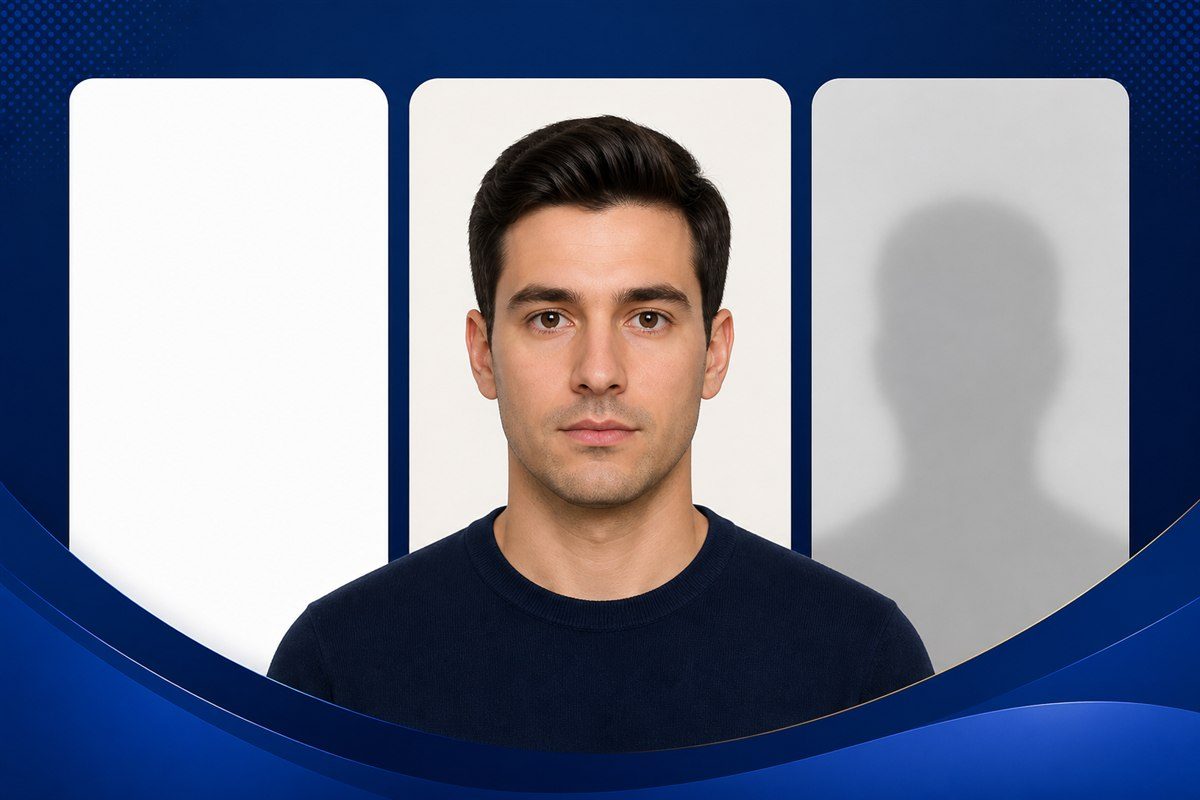
Passport and ID photo background requirements vary by country, authority and application. White or light plain backgrounds are common, but they are not universal, so always follow the instructions for the specific document or form you are preparing.
A suitable background should normally be:
- plain
- uncluttered
- evenly lit
- free from strong shadows
- clearly separated from the subject
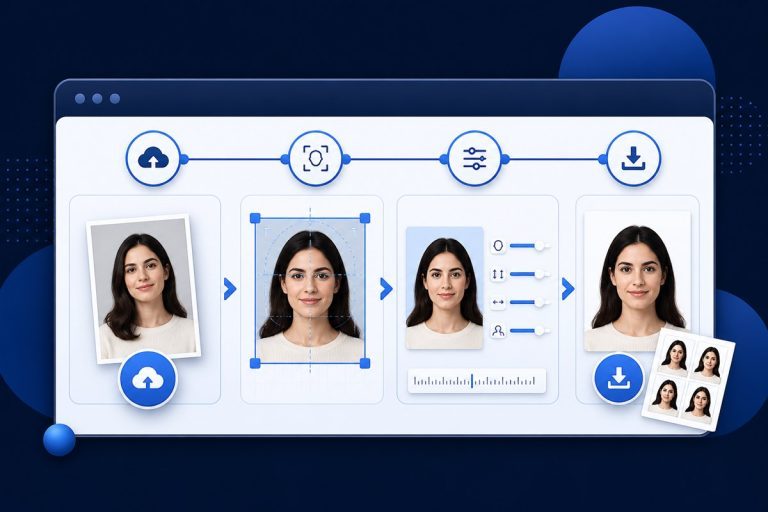
If your photo already has a suitable background, you can use the Passport Size Photo Maker to crop, resize and download it in the dimensions you need.
What Colour Should a Passport Photo Background Be?
There is no single background colour that is correct for every passport, visa, examination or ID application.
Depending on the authority, the requirement may specify:
- white
- off-white
- light grey
- light blue
- another plain colour
- a particular RGB or digital background specification
The correct colour is the one stated by the authority or application.
Do not choose a white background simply because it is common if your form asks for something different.
Is a White Background Required for Passport Photos?
A white background is common for many passport-style photographs, but it should not be treated as a universal rule.
Some authorities accept or require:
- pure white
- off-white
- very light neutral colours
- another specified background
The safest approach is:
- open the official instructions for your application
- find the background requirement
- prepare your photo accordingly
- check the final image before submitting it
If the instructions simply say plain background, avoid adding patterns, objects or strong colour variation.
Passport Size Photo with White Background
If your application specifically requires a white background, aim for a background that looks:
- clean
- even
- neutral
- free from visible texture
- free from dark areas
- free from coloured reflections
The background should not contain:
- furniture
- doors
- windows
- wall decorations
- other people
- objects
- visible text
- patterned wallpaper
A plain wall or suitable photography backdrop usually works better than trying to hide a busy scene later.
Is a Blue Background Allowed?
Sometimes, but only when the application permits or requires it.
Blue backgrounds are used for some ID-style photographs and application systems, but they are not automatically acceptable for passports.
If your form says:
blue background
follow the exact shade or guidance provided where available.
If it says:
white background
do not substitute blue because another application accepts it.
The document-specific requirement always takes priority over a generic passport-photo convention.
Why Does the Background Matter?
The background helps keep the subject easy to distinguish from the rest of the image.
A poor background can cause problems such as:
- the edge of the face or hair blending into the wall
- shadows appearing behind the head
- objects distracting from the subject
- inconsistent brightness
- automated systems having difficulty separating the face from the surroundings
Even when the image dimensions are correct, an unsuitable background may still make the photograph unacceptable for the intended application.
Avoid Strong Shadows Behind the Head
Strong shadows are one of the most common problems in home-taken ID photographs.
They often appear when:
- the subject stands too close to the wall
- a single strong light comes from one side
- the camera flash points directly at the subject
- room lighting is uneven
A better setup is to:
- move slightly away from the wall
- use soft, even lighting
- avoid a single harsh side light
- check the wall behind the head before taking the picture
The goal is a background that looks consistent rather than having a dark outline around the head or shoulders.
Use Even Lighting
Lighting affects both the face and the background.
Try to avoid:
- very bright light on one side
- dark shadows on the other side
- direct sunlight creating harsh contrast
- coloured lights
- strong reflections from nearby surfaces
Soft daylight can work well if it is even.
Stand facing the light rather than placing a strong light directly behind you.
If the background looks much darker on one side than the other, adjust the lighting before taking the photo.
Keep Enough Distance from the Background
Standing directly against a wall can create visible shadows.
If possible, leave some distance between the subject and the background.
This can help:
- reduce shadows
- make the background look more even
- create cleaner separation around hair and shoulders
The exact setup depends on the available space and lighting, but even a small improvement in distance can make the image easier to prepare.
Choose Clothing That Contrasts with the Background
If your application uses a white or light background, very light clothing can blend into it.
A top with reasonable contrast can make the shoulders easier to distinguish from the background.
Avoid choosing clothing solely for visual style. Follow any official clothing requirements that apply to your document.
The important point is that the subject should remain clearly visible against the background.
Avoid Backgrounds That Match Hair or Clothing Too Closely
A background that is very similar to the subject’s hair or clothing can reduce visual separation.
For example:
- dark hair against a very dark background
- a white shirt against a white background
- a blue top against a required blue background
may make some edges harder to distinguish.
If you can choose the clothing or shooting location, aim for clear but natural contrast.
Can You Take a Passport Photo Against a Wall?
Yes, a plain wall can be suitable when it meets the requirements of the application.
Look for a wall that is:
- clean
- plain
- evenly coloured
- well lit
- free from visible marks and decorations
Avoid:
- textured brick
- patterned wallpaper
- strong paint variations
- framed pictures
- visible corners
- shelves
- switches or sockets near the head
A simple wall is often easier to use than a complicated background-removal workflow.
Can You Use a Sheet as the Background?
A plain sheet can work for some informal photo preparation, but it can introduce problems such as:
- folds
- wrinkles
- visible texture
- shadows
- uneven colour
If you use one, stretch it flat and light it evenly.
A smooth wall or proper backdrop is usually easier to make consistent.
Can You Take the Photo Outdoors?
You can take a portrait outdoors, but outdoor backgrounds are often unsuitable for passport-style photographs because they may contain:
- buildings
- trees
- sky
- people
- changing light
- strong shadows
If your application requires a plain background, it is usually easier to take the photograph indoors against a suitable wall or backdrop.
Can You Change a Passport Photo Background Online?
Yes, image-editing software can remove and replace backgrounds.
However, the current version of the Passport Size Photo Maker does not automatically remove or replace the original background.
The current tool focuses on:
- cropping
- positioning
- resizing
- rotating
- dimension conversion
- JPG/PNG output
- optional JPG compression
We deliberately do not claim that the V1 tool changes the background when it does not.
If automatic background removal is added in a future version, this page should be updated to describe the actual feature.
Should You Use AI Background Removal for Passport Photos?
Automatic background removal can be convenient, but identity photographs need clean edges around:
- hair
- ears
- shoulders
- clothing
A poor automatic cut-out can create:
- missing hair
- unnatural edges
- halos
- blurred outlines
- artificial-looking backgrounds
If you use an automatic background-removal tool elsewhere, inspect the finished image closely before submitting it.
A correctly photographed plain background is often more reliable than aggressive editing.
Can You Change the Background to Pure White?
You can replace a background with white using suitable editing software, but whether you should depends on the application.
If the authority requires white, the result should look natural and clean rather than obviously cut out.
Check the edges around:
- hair
- ears
- neck
- shoulders
Avoid adding a white background simply because it is common if the official instructions specify another colour.
Passport Photo Background for India
For Indian applications, do not assume that every use of the term passport size photo has identical rules.
For the Indian Passport Seva process, current official guidance specifically says that minor applicants below four years of age should carry a recent passport-size photograph measuring 4.5 × 3.5 cm with a white background.
Official source:
Passport Seva – Government of India
Other Indian uses, such as:
- examination forms
- recruitment applications
- school admissions
- visa applications
- identity documents
may publish their own background requirements.
Always follow the instructions for that specific application rather than applying one passport-photo rule everywhere.
What About Backgrounds for Online Forms and Exams?
Many online application systems use the phrase passport-size photo even when the image is not being used for a passport.
These forms may specify their own:
- background colour
- image dimensions
- pixel size
- file format
- KB range
For example, an examination portal might require a different digital specification from a passport authority.
Treat each application as its own requirement.
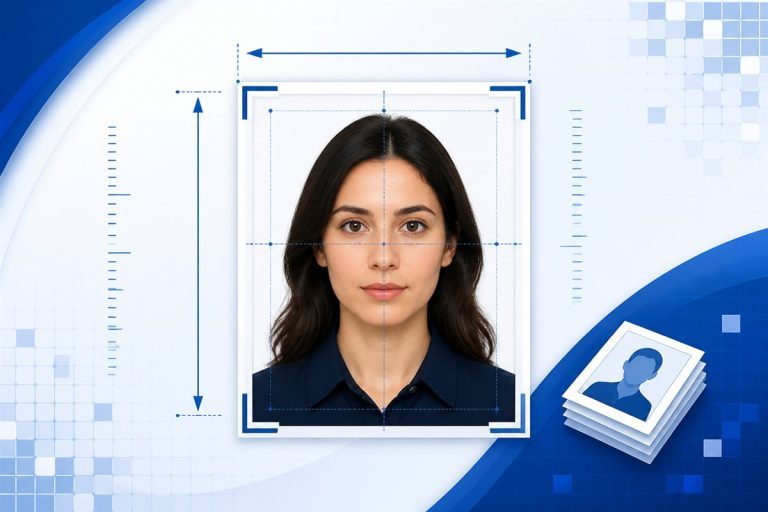
The Passport Size Photo Size Guide explains how to convert dimensions once you know the required size.
Background Colour Does Not Change the Photo Dimensions
Changing the background from white to blue does not change:
- width
- height
- aspect ratio
- pixel dimensions
These are separate properties.
For example, a 35 × 45 mm image remains:
35 × 45 mm
regardless of whether the allowed background is white, grey or blue.
The background requirement and the size requirement both need to be checked independently.
Does the Background Affect File Size?
It can.
A simple, flat background is easier for JPEG compression than a detailed scene containing:
- furniture
- textures
- foliage
- patterns
So a plain background may sometimes produce a smaller file at similar quality.
However, you should choose the correct background because of the application requirement, not simply to reduce KB.
If you need a maximum JPG size, the Passport Size Photo Maker includes optional KB compression.
How to Take a Passport-Style Photo with a Plain Background
Use this simple setup:
Step 1: Find a Suitable Wall or Backdrop
Choose the colour required by your application.
Step 2: Remove Visible Objects
Keep the area behind the head and shoulders completely clear.
Step 3: Move Away from the Wall
Create enough distance to reduce shadows where possible.
Step 4: Face Soft, Even Light
Avoid strong side lighting.
Step 5: Keep the Camera Around Eye Level
Do not shoot from a very high or low angle.
Step 6: Take Several Photos
Choose the sharpest image with the cleanest background and best facial positioning.
Step 7: Crop and Resize
Use the Passport Size Photo Maker to apply the correct dimensions.
For the full process, see How to Make a Passport Size Photo.
Common Passport Photo Background Mistakes
Assuming White Is Always Correct
White is common, not universal.
Leaving a Strong Shadow
Move away from the wall and improve the lighting.
Using a Busy Room
Remove objects or choose a different location.
Using a Patterned Wall
Use a plain background when the application requires one.
Wearing Clothing That Disappears into the Background
Where permitted, choose clothing with enough contrast to keep the shoulders visible.
Editing the Background Too Aggressively
Artificial-looking edges around hair and shoulders can reduce image quality.
Ignoring the Application Instructions
The official requirement matters more than a generic online guide.
Does PassportSizePhoto.org Automatically Check the Background?
No.
The current tool does not:
- detect the background colour
- remove the background
- check for shadows
- verify biometric compliance
- certify government acceptance
Its positioning overlay is a visual crop guide only.
This limitation is intentional and stated clearly so that the tool does not imply a level of compliance checking it does not perform.
Common Questions About Passport Photo Backgrounds
What Is the Best Background for a Passport Size Photo?
Use the background required by your application.
White or light plain backgrounds are common, but there is no universal colour for every passport or document.
Does Passport Photo Background Have to Be White?
No universal rule says every passport-style photo must be white.
Check the instructions for the exact application.
Can Passport Size Photo Background Be Blue?
Yes for some applications, but only when blue is permitted or required.
Do not use blue when your application specifies white.
Can I Use an Off-White Background?
Some authorities permit off-white or light neutral backgrounds, while others specify white.
Follow the published requirement.
Can I Have a Shadow Behind My Head?
Strong shadows are best avoided.
Use even lighting and create some distance between the subject and the background where possible.
Can I Use a Wall as the Background?
Yes, if the wall is plain, suitable in colour, clean and evenly lit.
Can I Remove the Background Online?
Yes, but the current PassportSizePhoto.org V1 tool does not include automatic background removal.
Does Changing the Background Change the Passport Photo Size?
No. Background colour and image dimensions are separate requirements.
Can I Wear White Clothes on a White Background?
The shoulders may blend into the background.
Where the document rules allow it, clothing with clearer contrast is generally easier to distinguish.
Does the Tool Guarantee My Background Will Be Accepted?
No.
The issuing authority determines acceptance.
Prepare the Rest of Your Photo
Once you have a suitable background, use the Passport Size Photo Maker to crop, resize and download the finished image.
For related guidance:
- Passport Size Photo Size — dimensions, pixels and aspect ratio
- How to Make a Passport Size Photo — full creation process
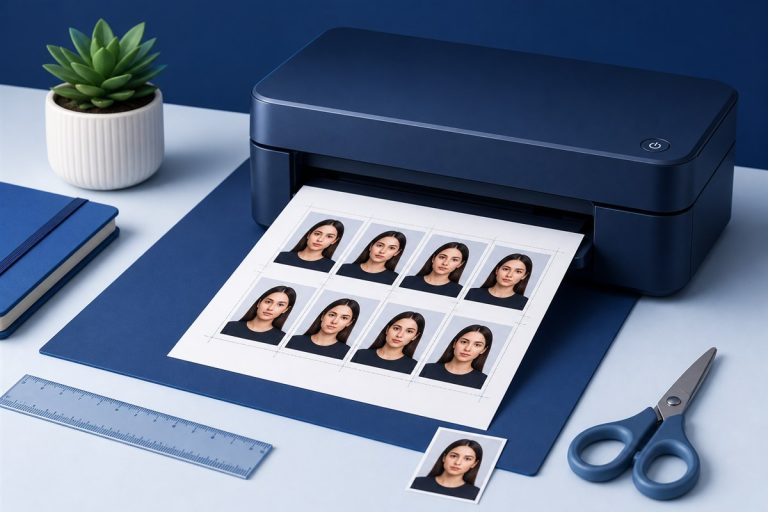
- How to Print Passport Size Photos — physical printing and scaling
AUTHOR & WEBSITE OWNER
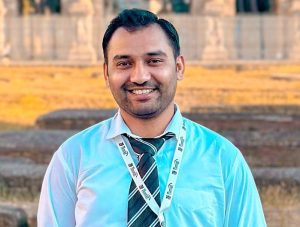
Written by Muzammal Amin
Muzammal Amin is a PhD student in Physics at the University of Turin with core expertise in mathematics and physics. He develops and reviews the website’s measurement guidance and browser-based photo utility.
Passport Size Photo
An independent online photo utility to create passport-size photos quickly, privately and easily in your browser.
© PassportSizePhoto.org
Independent online photo utility.
Not affiliated with any government authority.